
Commesse.Cloud · Features
Timesheets
Capture hours where the work happens, instead of reconstructing them at the end of the month. The timesheet shows the week as a grid: one row per project and work package, one column per day, plus a Day view designed for smartphones.
Start for free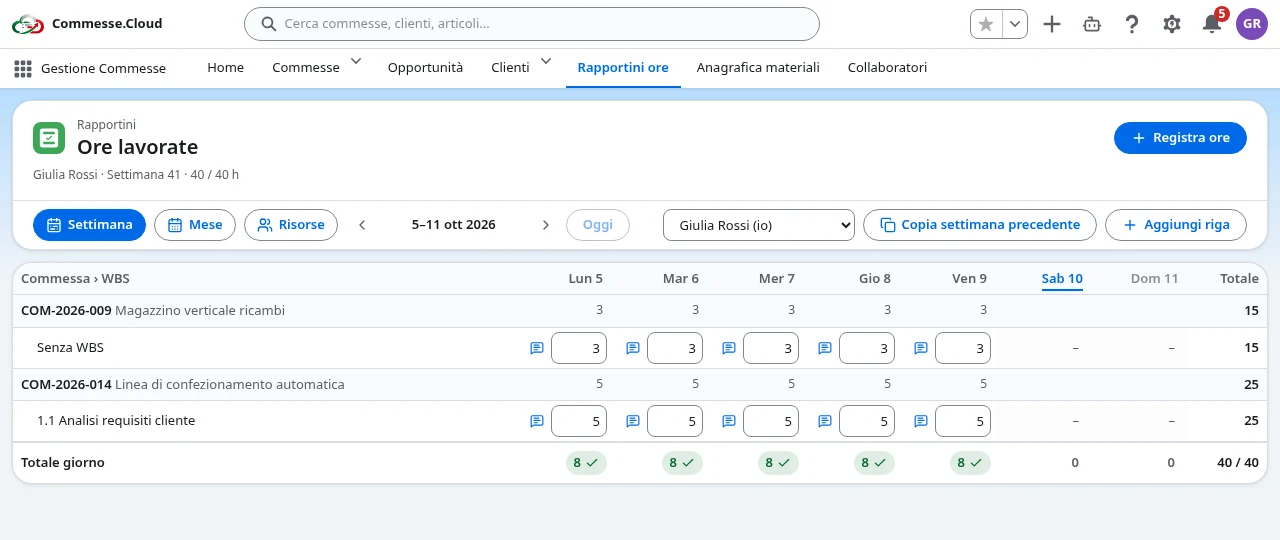
Timesheets in your project
A weekly grid, edited in place
Type hours straight into the cells and move to the next one with Enter or Tab: everything saves automatically. Rows appear on their own for the projects you’ve worked on recently; the ones you always use can be pinned, and last week can be copied with a single click.
Hours and WBS on the same day
Each row is a project and, optionally, one of its work packages. On the same day you can log several entries on the same row, each with its own notes: the cell detail shows them all and lets you edit or delete them.
Incomplete days stand out
Each day’s total is colored against 8 hours: green when complete, yellow when incomplete, red when missing. The monthly calendar shows the days to complete at a glance and sums up hours by project.
Team view and role-based access
Administrators and project managers see the week’s hours for every resource and open each person’s sheet with one click. Administrators see all resources; project managers see those on their assigned projects; team members log their own time on their own projects. Sales staff have no access to timesheets.
Step by step
In everyday work
- 1Open the week: rows for your recent projects are already there.
- 2Type the hours into the cells and add notes from the detail when needed.
- 3Check the highlighted days in the monthly calendar and complete them.
Hours organized by project and task, ready for tracking actuals.